SUPPORT















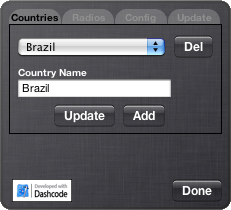
The configuration panel (in the rear part of the widget) is where we can add, update and delete countries and radios stations, as well as realize a few basic configurations. These operations are very easy to be performed as seen below.
Countries tab
.: Adding a country:
.: Updating a country name:
.: Deleting a country:
Type the country name in Country Name text box; and
Press Add button.
Select in the combo box the country which name you would like to update;
Note that the country name is shown in the text box labeled Country Name;
Update in the text box the country name to a new desired name; and
Click on Update button.
1. Select in combo box the country in which you desire to delete; and
2. Click on Del button.
-
★ If the country has radio stations, the operation can't be executed.
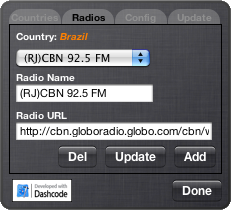
The add, update and delete radio stations operations are similar to the countries functions, which makes is unnecessary to be explained. However, there are a few remarks shown below.
First, the user must select a country in the combo box at Countries tab and then, change to Radios tab. In this tab you will be able to add, update and delete radio stations of the selected country.
Differently from the previous versions, where it was needed to define the codec type that would be used to perform a radio station, in this version the appropriate codec type is set automatically by the player according each URL’s radio.
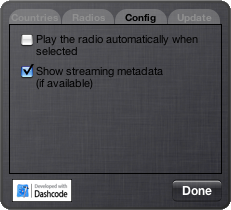
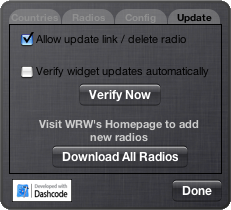
Still in the rear part of the widget, in the Config and Update tabs, the following configuration options are available:
Radios tab
.: Verify widget updates automatically
When this option is selected, every time the user initializes the Widget, it will verify the existence of a new version of the player.
.: Play the radio automatically when selected
With this option marked, every time the user selects a new radio station through either the Radios combo box or a memory button, it will be automatically played, and the user don´t need to press the Play button.
.: Download All Radios
Using the Download All Radios button, it is possible to download the XML file containing all the available radio stations at the WRW Homepage. This makes it easier for those who wants to have all radio stations with including them manually one by one.
Update tab
.: Show streaming metadata (if available)
Enables the exhibition and scroll of the streaming metadata (if available) in the WRW display.
.: Allow update link / delete radio
When an user drags one or more radio stations to the widget from the WRW homepage or when presses the Download All Radios button, 3 actions may occur: include, update or exclude those radios. Enabling this configuration item, the user allows the widget to update the URL or remove the radios (the ones which are no longer available).
.: Verify Now
When this button is pressed, the widget will verify if there is any available updates to the WRW.
Config tab
1.
2.
3.
4.
1.
2.
-
★If already exists a country with the same name, the operation can`t be executed.
-
★If already exists a country with the same name, the operation can`t be executed.



> Update your radios
> Free use
> Version 1.3-beta
> Need some help?
> Dev and Hosting
> Translation


